Slack Integration
Slack integration configuration
Receive reading updates directly in your Slack workspace. Perfect for sharing your reading progress with your team or just keeping a personal log in a private channel.
Setting up Slack integration
-
Create a Slack App
Go to api.slack.com/apps and create a new app for your workspace.
-
Enable incoming webhooks
In your app settings, enable Incoming Webhooks and create a new webhook for your desired channel.
-
Copy the Webhook URL
Copy the webhook URL that Slack generates for you. It will look like: https://hooks.slack.com/services/...
-
Add to Book Reading Habit
Go to Settings > Integrations in the app and paste your Slack webhook URL.
Configuration
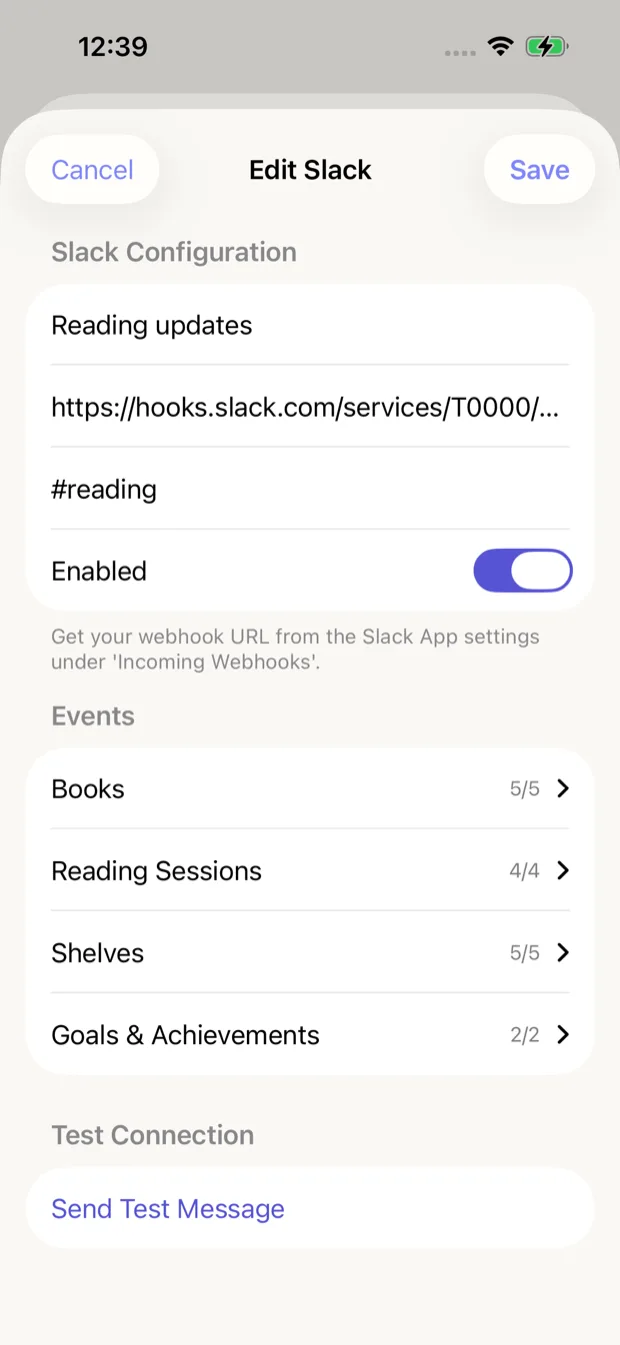
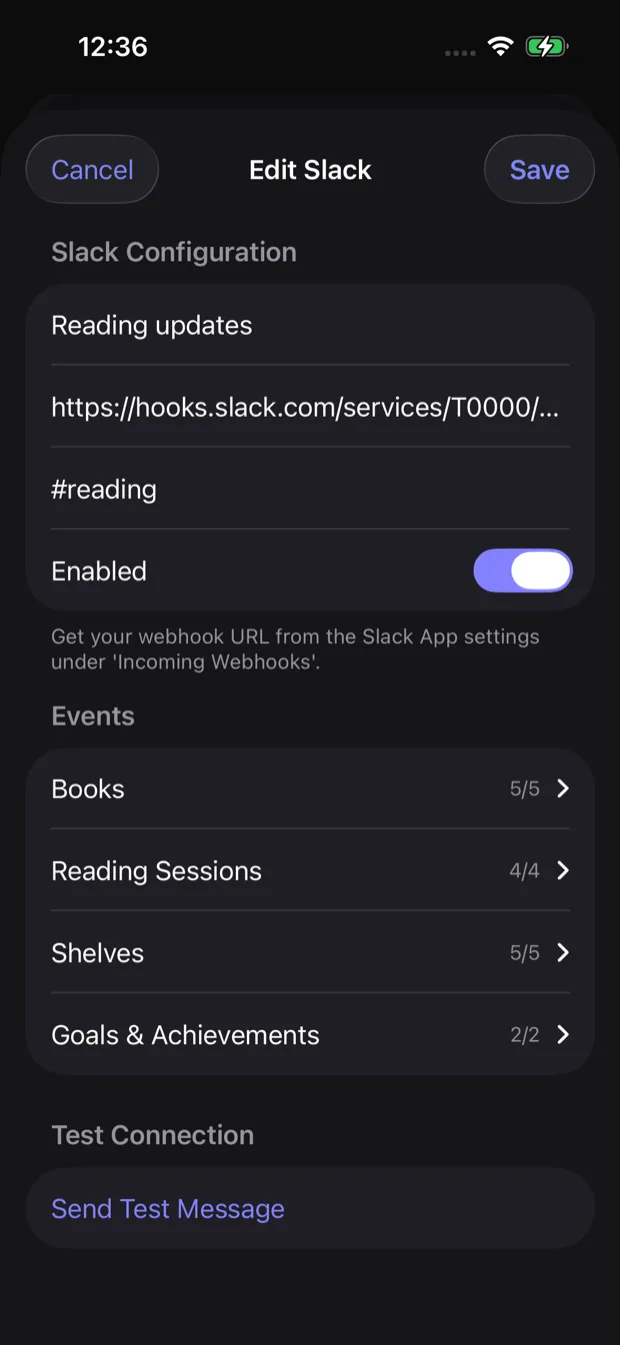
Configure your Slack integration with the following settings:
Webhook URL
The incoming webhook URL from your Slack app (get this from api.slack.com/apps)
Channel Name (Optional)
Override the default channel (e.g., #reading-log). Leave empty to use the channel configured in Slack.
Available events
Choose which reading events should be sent to Slack:
Books
5/5Events related to adding, updating, or completing books
Reading Sessions
4/4Events for starting and completing reading sessions
Shelves
5/5Events for creating, updating, or deleting shelves
Goals & Achievements
2/2Events for achieving reading goals and milestones
Pro Tip
Create a dedicated #reading channel in Slack to keep all your reading updates organized and separate from other notifications.